Otter Navigate
Otter Navigate is CSUMB’s coordinated care platform designed to support student success. When faculty take attendance, submit progress reports, or raise alerts, the system notifies the student and connects them with the right support staff, such as advisors or tutors. This creates timely, transparent follow-up and provides the real-time classroom insights that make it easier to keep students on track and thriving.
How to login
Open the CSUMB Employee Dashboard.
Select OKTA Dashboard from MyApps.
Select Otter Navigate Staff/Faculty.
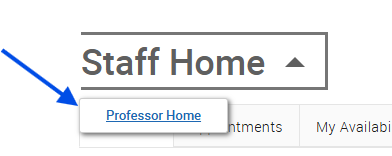
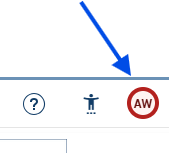
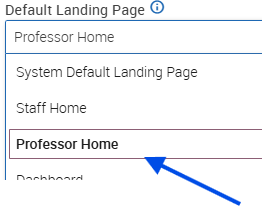
If you land on Staff Home, switch to Professor Home (▼ next to “Staff Home”).
How to submit progress reports/alerts
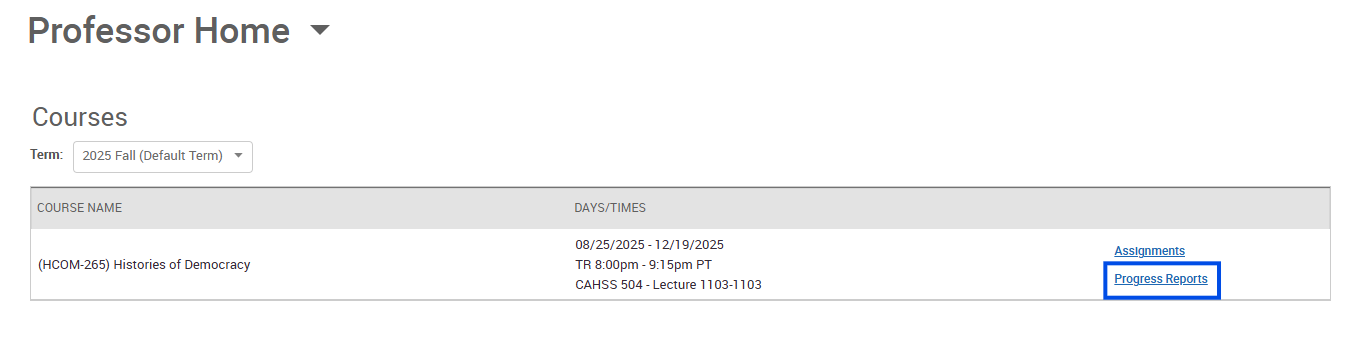
To issue an alert or complete reports on students in your class, go to the Professor Home Page and select the Progress Reports link next to the appropriate course. (You may need to adjust the term).
On the professor homepage, click Progress Reports to the right of the class for which you have student(s) that you would like to issue an alert.
Select the student(s) you want to issue an alert for.
-
To issue an alert for one student, check the box next to their name.
-
To issue the same alert for multiple students, check the boxes next to all applicable names.
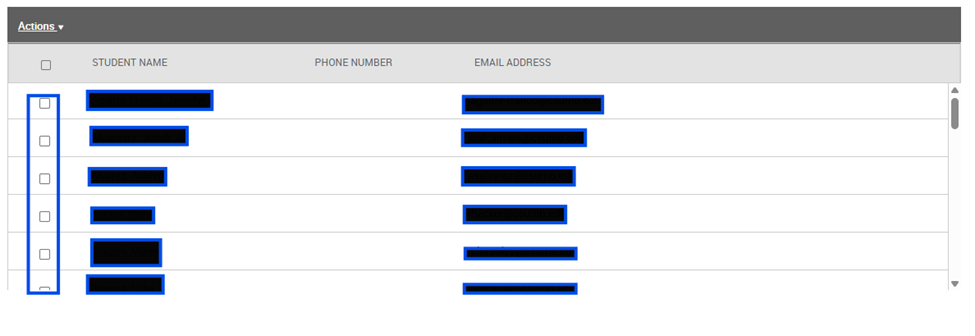
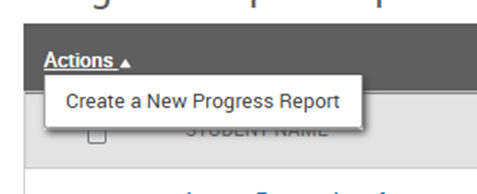
Select Actions, then Create a New Progress Report.
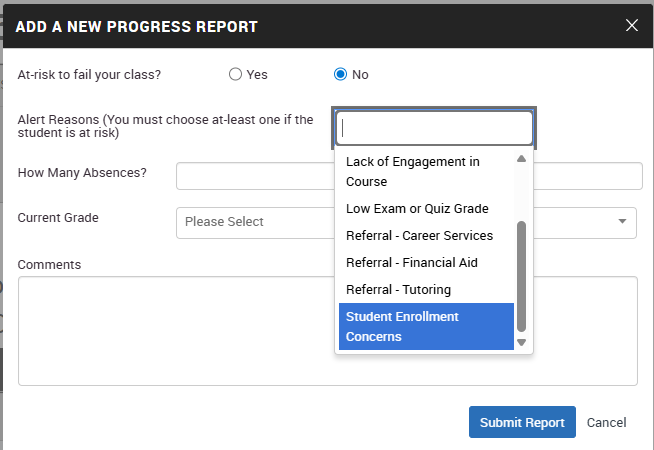
Indicate if you have feedback on this student by selecting Yes.
Choose the Alert Reasons for the student(s).
Optionally, you may provide additional comments that will help the care unit assist the student(s). Use the comments field to describe the behavior (e.g., “missed three labs”) rather than conclusions (“unmotivated”).
Select Submit Report.
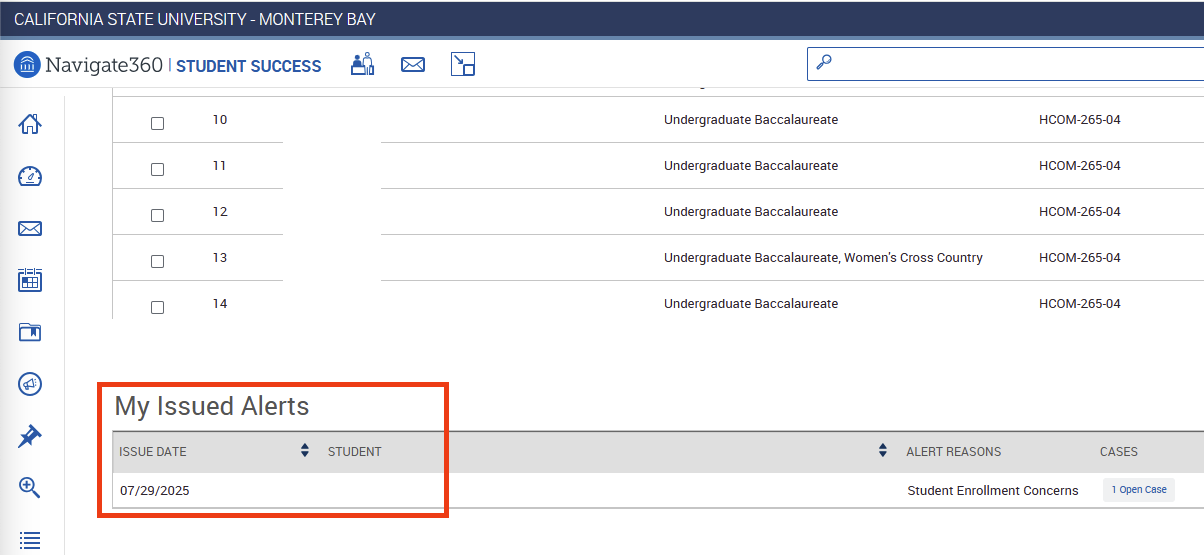
Some alerts result in a case being opened and managed by CSUMB staff. Other alerts/referrals result only in an email with instructions or advice sent to the student. In almost all instances, a notification will be sent to the student and the appropriate CSUMB staff. You can monitor your issued alerts at the bottom of the Professor Home page
How to submit an alert/referral
Staff can refer students to a care unit. Currently, there are four care units available: Career Services, Financial Aid, OtterCare and Tutoring. These referrals will send an automated message to the student letting them know a staff member has issued an alert/referral and that someone from the care unit will be reaching out to them with assistance.
Once logged in to your account, on the right side of your home screen you will see an “Actions” box. Click on “Issue an Alert/Referral.”
An “Issue an Alert” box will appear on your page. Type in the student’s name, or student ID number.
Select a Reason for the referral from the drop-down menu and select the Specific Class if appropriate.
Provide all important information in the Additional Comments box so that the care unit knows how to best serve the student.
Click Submit.